Picture a small team on a normal Tuesday. A designer sends a file by email. A writer replies on a chat app. The manager adds a comment in a shared document, then asks in a video call whether anyone saw the comment. Three tools, four threads and one lost file later, nobody is sure who is doing what. We have all worked on that team.
Team collaboration apps exist to fix this. They put chat, files, tasks and meetings in one place so people can see what is happening without asking. But the market is crowded, and the feature lists all sound alike. Real life is simpler: you need to know which features matter, which ones are nice extras and which tool fits the way your team actually works.
This guide explains the main features of team collaboration apps in plain words. We look at messaging, meetings, task boards, shared documents and the safety basics that most teams forget. We use the vendors’ own pages for what each tool says it does, and we flag that as the vendor’s claim. We do not quote prices, since plans change often, so check the current plan page before you buy.
Key Takeaways:
- Most apps combine chat, meetings, file sharing and task tracking. What differs is which part is the center. Microsoft describes Teams as a workspace for real-time collaboration and communication, meetings, and file and app sharing, per its Microsoft Support overview of Teams.
- Channels keep conversations organized by topic. Slack says its channels let you discuss projects, share files and automate processes, per its Slack page on channels.
- Task boards and views turn talk into action. Asana lists Kanban, list, timeline, calendar and Gantt views on its Asana page on project views.
- About 35% of US workers who can work from home do so all the time, and 41% work a hybrid schedule, per a Pew Research Center survey of US workers from 2023, so remote-friendly tools matter.
- Turn on multifactor authentication. The CISA guidance on multifactor authentication says it adds a layer of security even if a password is stolen.
What a Team Collaboration App Actually Does
Before comparing features, it helps to know the jobs these apps are hired to do. Think of them as a shared office that you can open from anywhere. Different tools build the office in different ways, but the rooms are mostly the same.
The five jobs
| Job | What it looks like | Typical feature |
|---|---|---|
| Talk | Quick messages instead of long email chains | Chat, channels, threads |
| Meet | Voice or video calls, screen sharing | Meetings, huddles, calls |
| Share | One place for files, with the latest version | File storage, shared documents |
| Plan | Tasks with owners and dates | Boards, lists, timelines |
| Remember | Notes, decisions and know-how that people can find later | Wikis, docs, search |
Most teams do not need all five at full power. A three-person writing team may need chat, shared documents and a simple task list. A larger group with deadlines and dependencies may need timelines and reports. Start by writing down what hurts today, then look for the feature that fixes it.
Why it matters more now
Work is spread across homes, offices and time zones. A Pew Research Center survey of US workers, described in this Pew Research Center survey of US workers from 2023, found that roughly a third (35%) of workers with jobs that can be done remotely were working from home all of the time, down from 43% in January 2022 and 55% in October 2020, but up from just 7% before the pandemic. It also found that 41% of those workers were on a hybrid schedule. That is a US survey from 2023, so check newer data for your region. The point holds: many teams are not in the same room, so tools have to carry some of the office’s work.
All-in-one or best-of-breed
There are two styles. All-in-one platforms try to give you chat, meetings, files and some task features under one roof. Best-of-breed setups combine a few focused tools, such as a chat app, a task board and a document editor. All-in-one is easier to learn and manage. Best-of-breed lets you choose the strongest tool for each job, but adds some switching between apps. For small teams, fewer tools is usually better.
What to ignore at first
Vendors love long feature lists: dashboards, automations, integrations and AI assistants. Some of these are valuable, but most small teams use a fraction of them. Do not pay for features you cannot name a use for. Begin with the basics, use them well for a month and add more only when a clear gap appears.
A good habit is to run a short trial with real work, not a demo project. Pick a small real task, such as planning next month’s content, and run it entirely in the new tool. If people stop using it after a week, the problem is usually fit, not willpower. The same logic applies to personal projects: a solo blogger planning posts might use a simple board, as in our guide to a blog content plan.
Think of the first month as an experiment. Choose two or three measures that tell you whether the tool helps, such as fewer back-and-forth emails, tasks finished on time or less time spent asking where a file is. Check them after a few weeks. If nothing improved, the tool may be the wrong one, or the team may need clearer rules about how to use it. Both are fixable, and finding out early is much cheaper than finding out after a year of payments and habits.
It also helps to name one person as the owner of the setup. This person does not have to be technical. Their job is to keep channels tidy, answer questions about how things work and remove clutter. Without an owner, workspaces slowly fill with dead channels, duplicate boards and files nobody can place. With one, the tool stays useful for years. Rotate the job if it becomes a burden, and write the main rules on a single page that new members can read on their first day.
Messaging and Channels: Where the Talking Happens
Chat is the heart of most collaboration apps. Done well, it replaces dozens of small emails. Done badly, it becomes a firehose that nobody can follow. The difference is structure.
Channels keep topics apart
A channel is a shared room for one subject, such as a project, a client or a team. The Slack page on channels describes channels as flexible, transparent spaces for working together, where you can discuss projects, share files and even automate processes, and says you can create as many as you like. The big idea is openness: anyone who needs the information can find it, instead of it being locked in someone’s inbox.
Microsoft’s Microsoft Support overview of Teams takes a similar approach, describing a workspace where everything is in the open and accessible to everyone on the team. That openness helps new members catch up by scrolling back through the history, and it reduces the number of times someone asks, ‘Did anyone tell you about this?’
Threads and mentions
Threads keep a reply chain attached to the original message, so a side discussion does not bury the main channel. Mentions let you pull a specific person into a conversation. Together they stop the common problem where a key question scrolls out of sight. Teach your team to reply in threads and to mention a person only when their input is needed. Over-mentioning creates noise and leads people to mute everything.
Working with people outside your company
Many teams work with clients, freelancers or partners. Slack says its Slack Connect channels let you work with customers, partners and agencies as closely as you work with your own team, according to its channels page. Other tools have guest access for similar reasons. Whatever tool you choose, check how it handles outside people: what they can see, what they can download and how you remove them when a project ends.
Notifications you can live with
- Mute channels that are not relevant to your daily work.
- Set quiet hours so work does not follow you into the evening.
- Use mentions and direct messages for urgent things only.
- Agree as a team on what counts as urgent.
Notification settings are the quiet feature that decides whether a tool helps or harms. A chat app that pings you every minute will feel like a burden, however good its other features are.
Search and history
Good search is worth more than flashy features. When someone asks where a decision was made, you want to type a word and find it. Test the search during your trial. Look for filters by person, channel and date, and check whether files and messages are searchable together. If you cannot find last week’s message in thirty seconds, the tool will frustrate you in six months.
Team chat also changes the tone of work. People write shorter, faster messages, and jokes and emoji creep in. That can build friendship, especially for remote teams, but it can also create misunderstandings. When something is sensitive, such as feedback or a disagreement, switch to a call. The same goes for new team members: a friendly voice is better than a wall of text. If you work with other bloggers or freelancers, see our tips on how to make blogger friends for ways to build good working relationships.
Some teams like a short weekly rhythm to keep chat healthy. On Monday, post the three main goals for the week in the main channel. On Friday, each person adds one line about what got done and what is stuck. It takes minutes and replaces a long status meeting. People who work in different time zones especially value this, because they can read the update when they wake up, without waiting for a call.
Naming rules sound boring, but they save a lot of time. Use a clear pattern for channels, such as a project or client name first and the topic second. Pin the most important message in each channel, like the brief or the link to the main document. Archive channels when a project ends, so the list of active channels stays short. A tidy workspace feels calm, and a messy one makes people stop reading altogether.
Meetings, Calls and Screen Sharing
Even the most organized team needs to talk face to face sometimes. The question is how to do it without adding yet another app and yet another calendar invitation.
Quick calls versus scheduled meetings
The Slack page on huddles says huddles let you instantly connect over audio or video and share screens, right inside Slack. Teams offers meetings as part of its workspace, as its Microsoft Support overview of Teams notes. The common idea is that a call should be one click away from the chat where the question started. This helps for a two-minute problem that would take ten minutes to type out.
Keep scheduled meetings for decisions and for work that truly needs everyone at once. Send an agenda ahead of time, share the notes afterwards and end when the decisions are made. A meeting that could have been a message should be a message.
Notes, recordings and follow-up
Slack’s huddles page says that links, documents and messages shared in a huddle are saved once it ends, and that its AI features can take notes with key takeaways and action items. Whether you use an AI note taker or a human one, the habit matters more than the tool. Write down who owns each action and by when, and put it where the team will see it, such as the task board. Many meetings fail not in the room but in the follow-up.
If you record a meeting, tell everyone first, and check your local rules and your company’s policy. Do not record private conversations without agreement. Store recordings where only the right people can open them.
Screen sharing and whiteboards
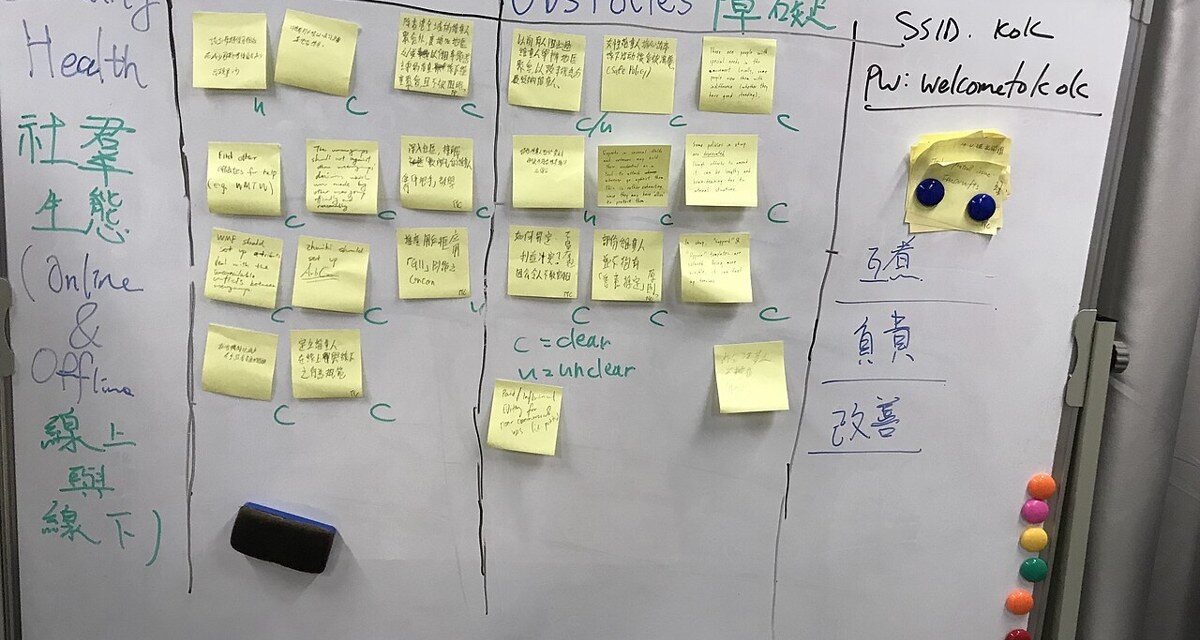
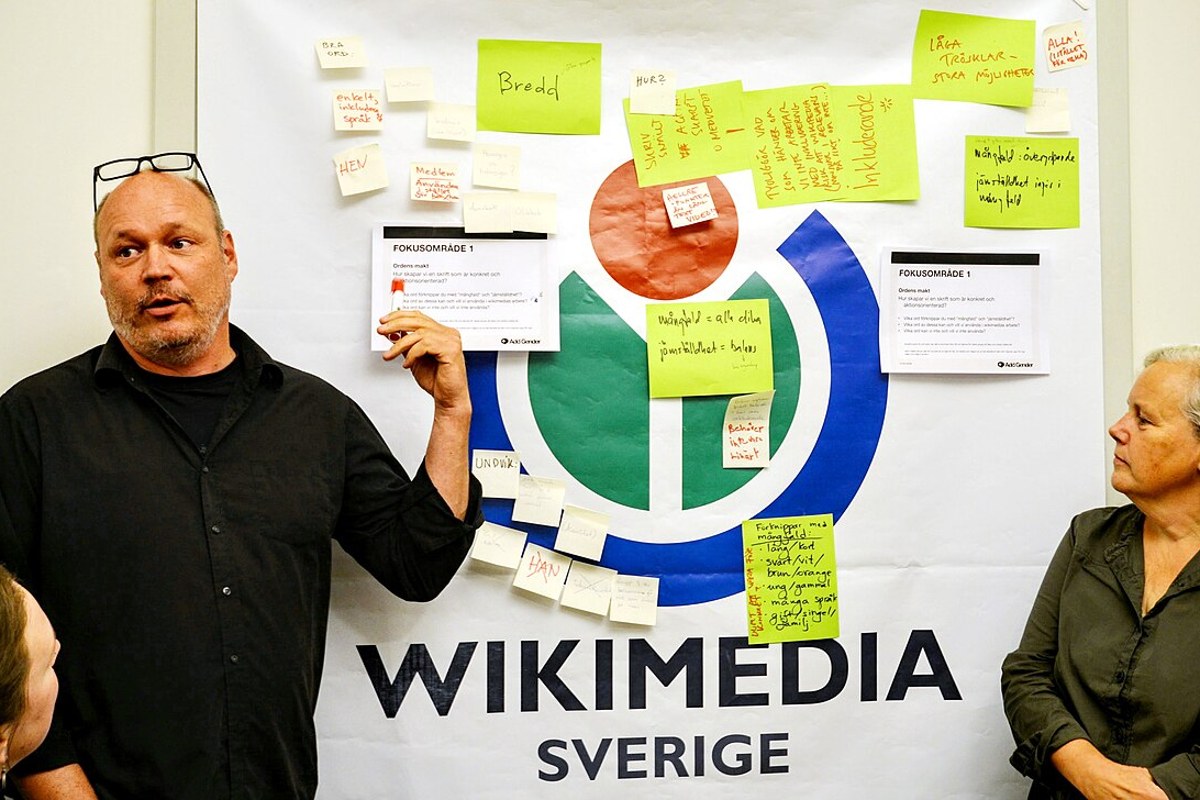
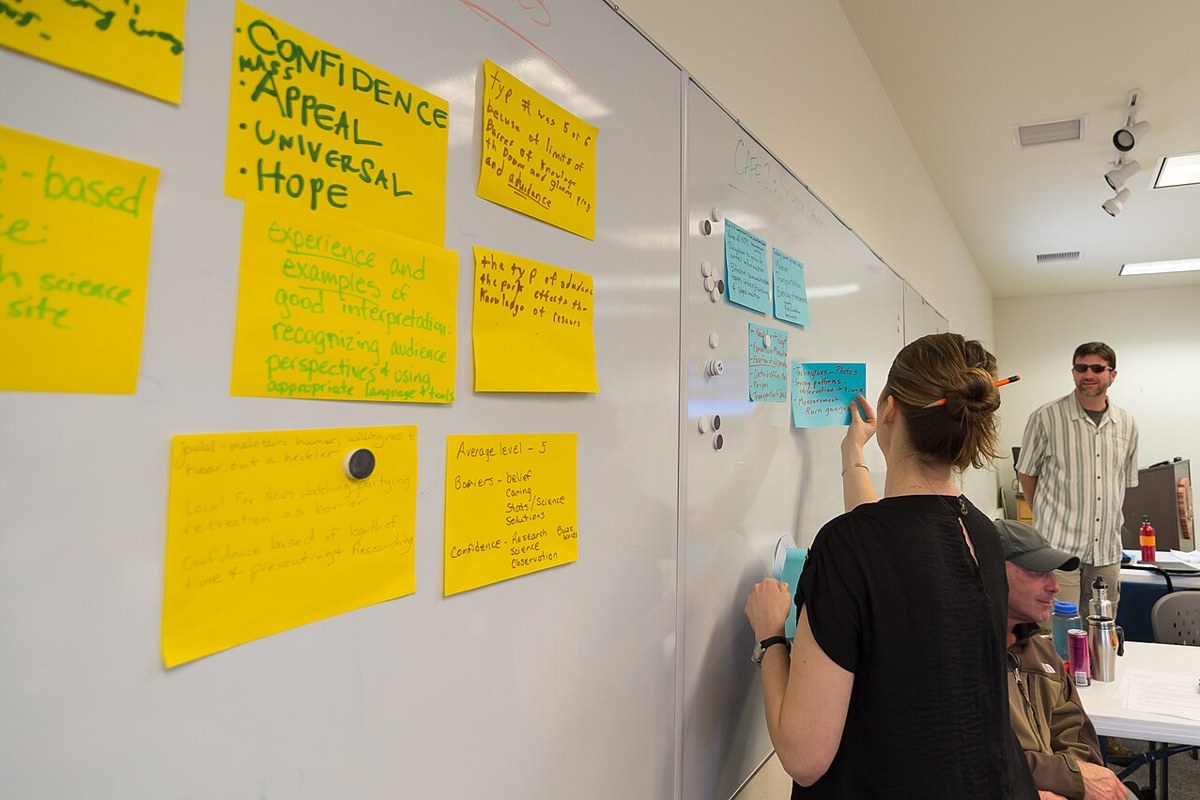
Screen sharing lets you walk through a design, a spreadsheet or a bug while everyone watches. Many apps also include a virtual whiteboard where people add notes at the same time, like the sticky notes in the photos in this article. These are useful for brainstorming with remote teams. Keep your sessions short, give everyone a chance to contribute and turn the best ideas into tasks before the call ends.
Make calls fair for remote teammates
- Join from your own device when some people are remote, so everyone has a face and a voice.
- Invite quiet people to speak, and not just the loudest.
- Share the agenda and slides before the meeting.
- Choose times that do not always favor one time zone.
- Post a short summary for people who could not attend.
Hybrid teams often split into two groups: the people in the room and the people on the screen. A small effort from the people in the room, such as speaking clearly and not whispering side comments, helps everyone feel part of the same team.
A few small habits make calls much better. Open with the goal in one sentence, so everyone knows what a good result looks like. Name a note taker before you begin. Keep cameras optional if people are tired, but make sure at least the speaker is clear to hear. Check audio before the meeting starts, since a bad microphone wastes more time than almost anything else. End by repeating the decisions and the owners, then post them in writing.
Think about the right length, too. Many calendar tools default to thirty or sixty minutes, and work expands to fill the time. Try twenty-five minutes or fifty, which leaves a short break between calls. For a daily check-in, ten minutes standing, or the chat equivalent of a written update, often does the job. If a regular meeting has no agenda two times in a row, cancel it and see whether anyone misses it.
Tasks, Boards and Project Views
Talking is easy. Finishing is hard. Task features are what turn conversations into results, and they are where tools differ most.
Boards, lists and timelines
Asana’s Asana page on project views says you can organize work as a Kanban board, list, timeline, calendar or Gantt chart, switch between project views with one click and create multiple custom views in a project. In a Kanban view, tasks appear as cards that you can drag between stages, with columns such as new, in progress and complete, and each card can show the due date, assignee and subtasks. Those are the vendor’s claims about its own product, but they describe the standard ways to see work.
Trello’s Trello product tour describes a simple start: sign up, create a board and go. Its board-and-card style is a good fit for small teams and for people who like seeing work as a set of columns. Compare it with a timeline view, which is better for deadlines and dependencies, such as when a design must be finished before development can start.
| View | Best for | Watch out for |
|---|---|---|
| Board (Kanban) | Seeing the stage each task is in | Can get crowded with many tasks |
| List | Simple to-do tracking | Hard to see dependencies |
| Timeline or Gantt | Deadlines and who is waiting for whom | Takes time to maintain |
| Calendar | Content plans and events | Less useful for tasks without dates |
Owners, dates and subtasks
Whatever view you use, three details make a task useful: one person owns it, it has a due date and it is small enough to finish. Large vague tasks, such as ‘launch website’, stay open forever. Break them into subtasks, each with an owner. That is the difference between a list of wishes and a plan.
Docs and knowledge in the same place
Notion’s Notion features page lists block-based docs that flex from a note to a full spec, databases that connect across a workspace, real-time editing with comments and forms that feed responses into a database. That is a different style: instead of starting from chat, you start from a shared page. Teams that write a lot, such as editorial or support teams, often prefer this style, because decisions, guidelines and drafts live next to each other.
Automation and integrations
Many apps can connect to others and automate small jobs, such as creating a task when a form is submitted or posting a message when a status changes. These features can save real time, but they can also create a tangle that only one person understands. Add automations one at a time, write down what each does and review them every few months.
For a solo creator or a small blog team, the same ideas scale down nicely. A simple board with columns for ideas, drafts, editing and published is often enough. If you write on the go, our guide on blogging from your phone shows how to keep that board moving from your phone.
Review your board regularly. A short weekly pass is enough: close finished tasks, move stuck ones and delete the ones that no longer matter. A board full of old cards is like a cluttered desk, and people stop trusting it. When a task sits in the same column for weeks, ask why. Maybe it is too big, maybe the owner is overloaded or maybe it was never important. Each answer points to a different fix.
Limit the number of tasks in progress. A common rule in board-style work is to finish things before starting new ones, so each person has only a few active cards at a time. This reduces the feeling of being busy while nothing is done. If your team has many requests from outside, create a simple intake form or a single column where new requests land. Then one person sorts them each day, instead of everyone being interrupted all day long.
Security, Setup and Choosing the Right Tool
Features are only half the story. A tool your team trusts, understands and actually opens each morning beats a fancier one that nobody likes. This last part covers safety, rollout and a simple way to decide.
Security basics for any app
The CISA guidance on multifactor authentication explains that multifactor authentication confirms your identity when you log in, for example with a code texted to a phone or generated by an authenticator app, and that it can make you significantly safer online even if someone steals your password. Turn it on for every account that supports it, starting with the admin accounts. Then review who has access, remove people who left and keep sharing settings tight.
- Use multifactor authentication for every member.
- Give people the lowest level of access they need.
- Review guest and outside access regularly.
- Remove accounts when someone leaves the team.
- Check what each connected app can see and do.
Roll it out in small steps
Do not move the whole team on day one. Pick one project, one channel or one board, and use the new tool for that alone for a few weeks. Write a short guide: what goes where, how to name things and how to reply. Ask for feedback and change the rules when something does not work. A calm rollout wins more trust than a big announcement.
A simple scorecard
| Question | Why it matters |
|---|---|
| Can everyone learn the basics in an hour? | Tools that are hard to learn get ignored |
| Does search find old messages and files? | Knowledge is only useful if you can find it |
| Does it work well on phones? | Many teammates will check it on the go |
| Can we control who sees what? | Security and client privacy |
| Can we export our data? | Avoids getting locked in |
| Does it fit our budget on the current plan page? | Prices and plan limits change often |
Check current details before you buy
Features, limits and prices change, and vendors describe their own products in the best light. Before you commit, read the current plan page, try the free tier or trial and read independent reviews from people with a team like yours. Ask the vendor about data storage, export options and support. If something is not clear, ask in writing.
Build good habits as well as a tool list
The best app will not fix unclear roles or too many meetings. Agree on simple rules: where each kind of message goes, how fast people should reply, how decisions are recorded and when to take a conversation to a call. Review those rules every few months. A tool supports a team culture. It does not replace one.
Start small, choose the features that fix your real pain and let the team tell you what works.
Privacy deserves its own thought. Chat history and files can hold client details, contracts and personal data. Decide how long you keep them and who can export them. If you work in a field with legal rules about data, such as health or finance, ask the vendor what it offers and check with a qualified professional before you store sensitive information. This guide is general information and not legal or security advice.
Finally, plan for the day you leave. Teams change tools, and a workspace you cannot export becomes a trap. Test the export function during the trial. Download a sample of messages, files and tasks and check that you can open them. Keep a copy of key documents in a place you control. A little care now means a move later is an annoyance, not a crisis.
Frequently Asked Questions
Which team collaboration app is best?
It depends on how your team works. Chat-first tools such as Slack suit conversation-heavy teams, board tools such as Trello and Asana suit task tracking, and Notion suits teams that live in documents. Run a short trial with real work.
Do small teams need a collaboration app?
Not always. A group chat and a shared document may be enough. Add a tool when messages and files start getting lost.
Is it safe to share files in these apps?
It can be, if you turn on multifactor authentication, limit access and review sharing settings. CISA’s guidance explains why multifactor authentication matters.
How much do these tools cost?
Prices change often and depend on the plan, so check each vendor’s current plan page. Many offer a free tier or trial.
Final Thoughts
A good collaboration app brings talk, meetings, files and tasks into one place so your team spends less time hunting and more time doing. Focus on the features that fix a real problem, keep security basics in place and roll out in small steps.
Write down your team’s three biggest frustrations this week, then pick the one feature that would fix the first one and test it on a small project.